

Give A Goal
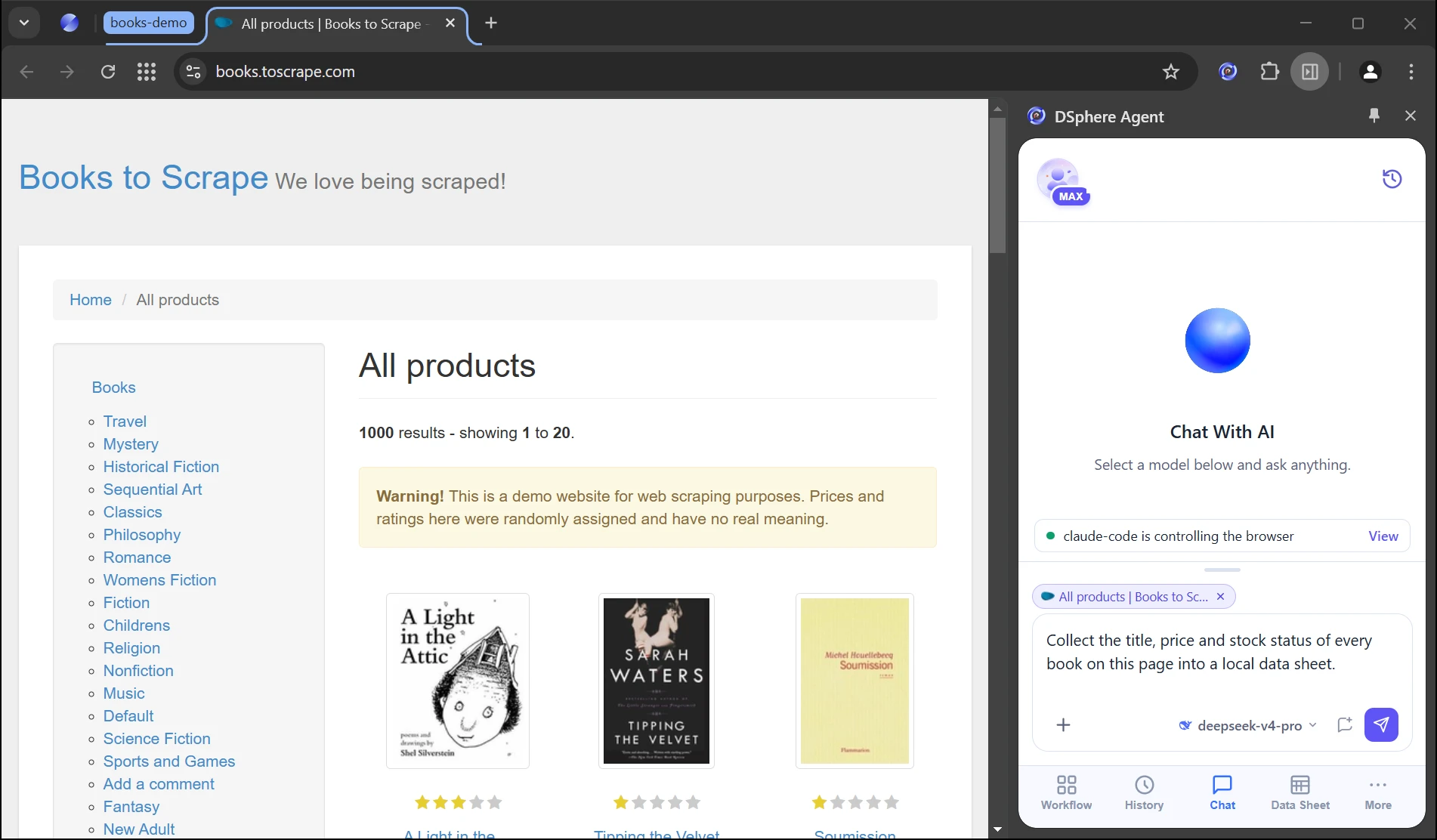
Describe the job in one sentence, in your agent or the built-in Chat.
BROWSER AGENT
Give a goal. It plans, acts and delivers.
Available on all plans. See pricing for limits.
Start from Claude Code, Codex, Cursor or the built-in Chat. It plans, works in the DsphereAI browser and hands back the result.
Describe the job in one sentence, in your agent or the built-in Chat.
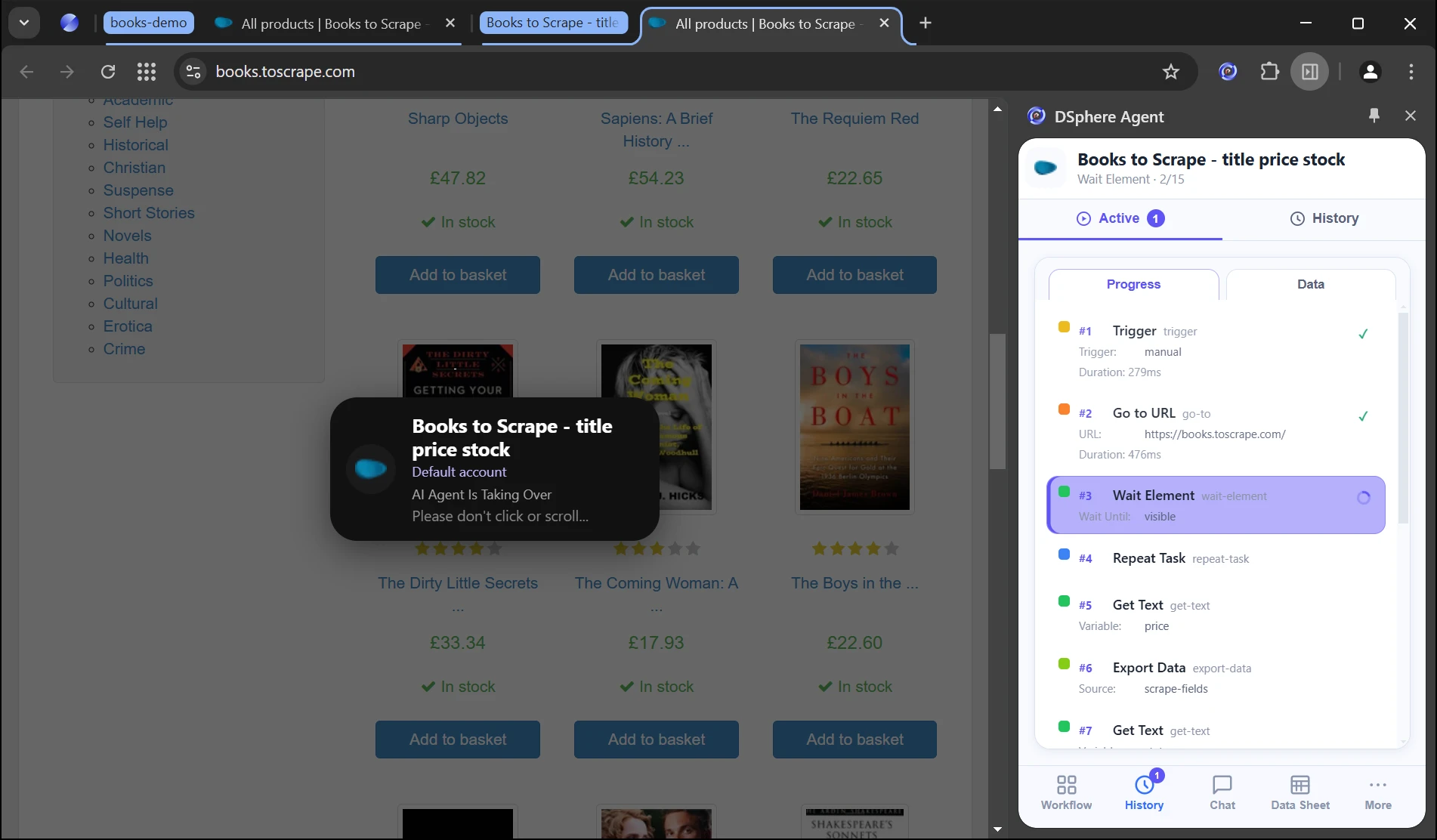
It shows a plan, then works in the DsphereAI browser, reusing the sessions you signed in to there. Sensitive actions wait for you to confirm, and you can pause or stop anytime.
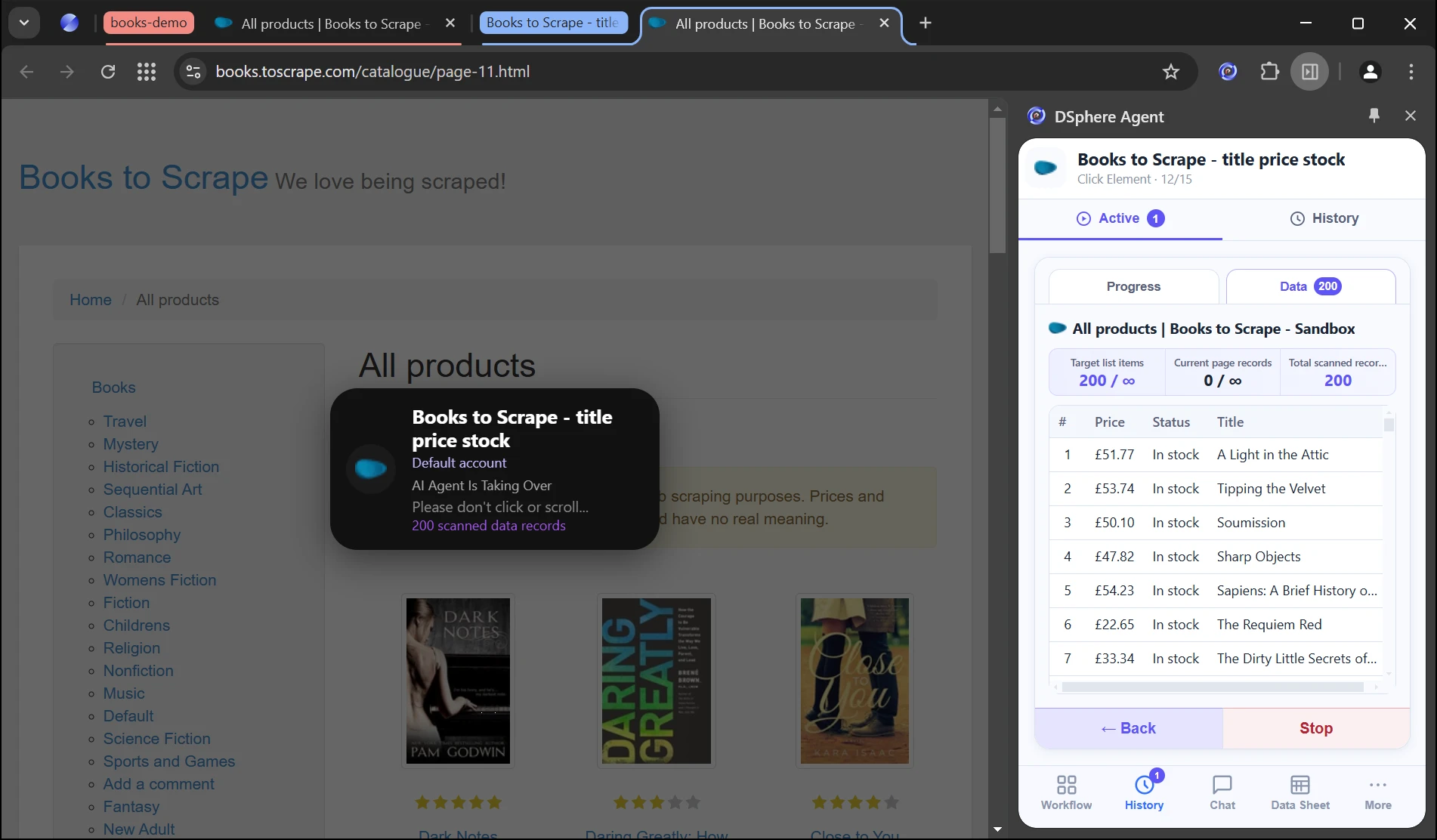
Data goes to local data sheets or export files, and results go back to your agent or Chat.
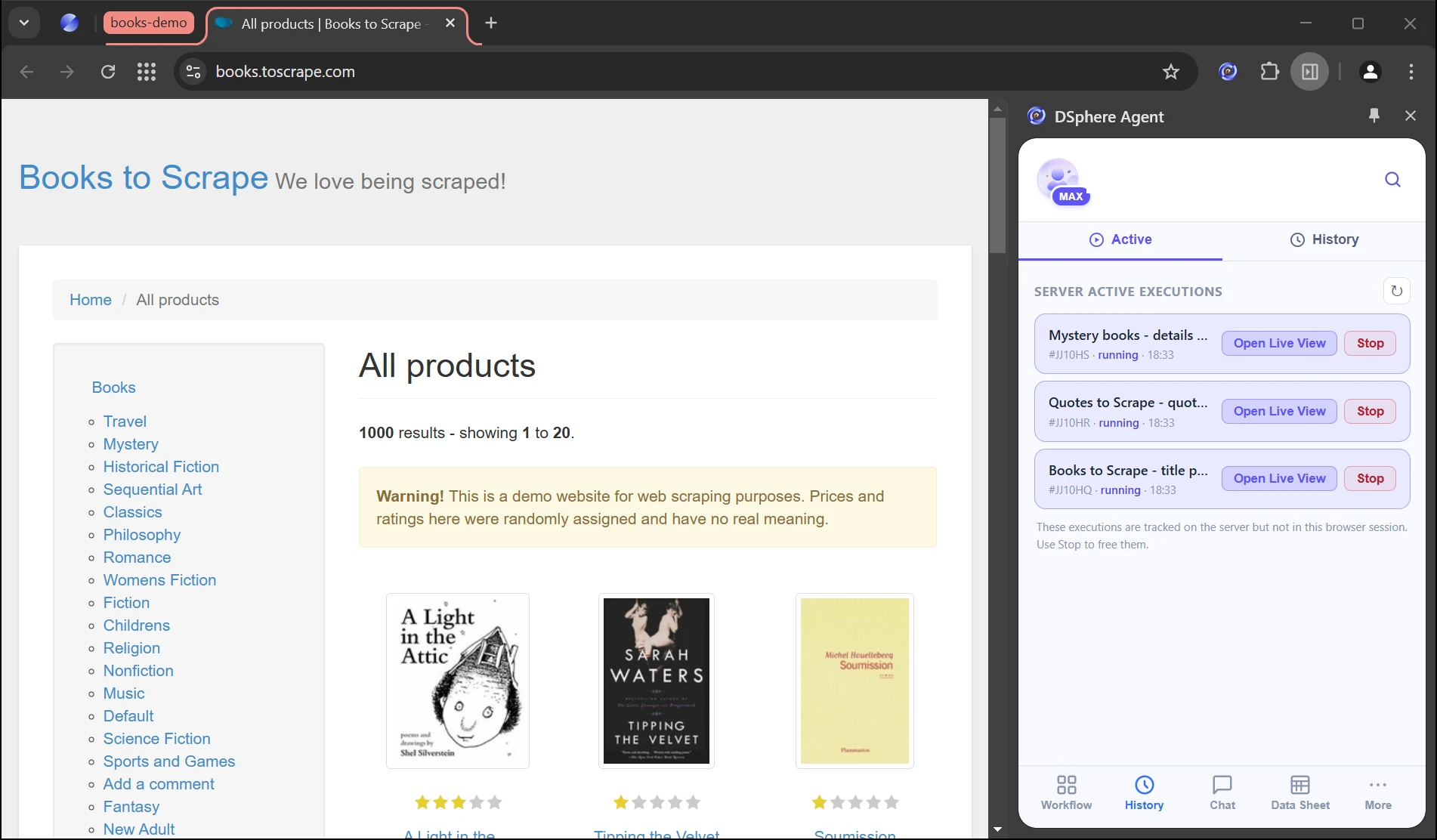
Independent runs. Isolated sessions.
See the plan, every action and the page it acted on. Sensitive steps wait for your OK, and you can pause or stop anytime.
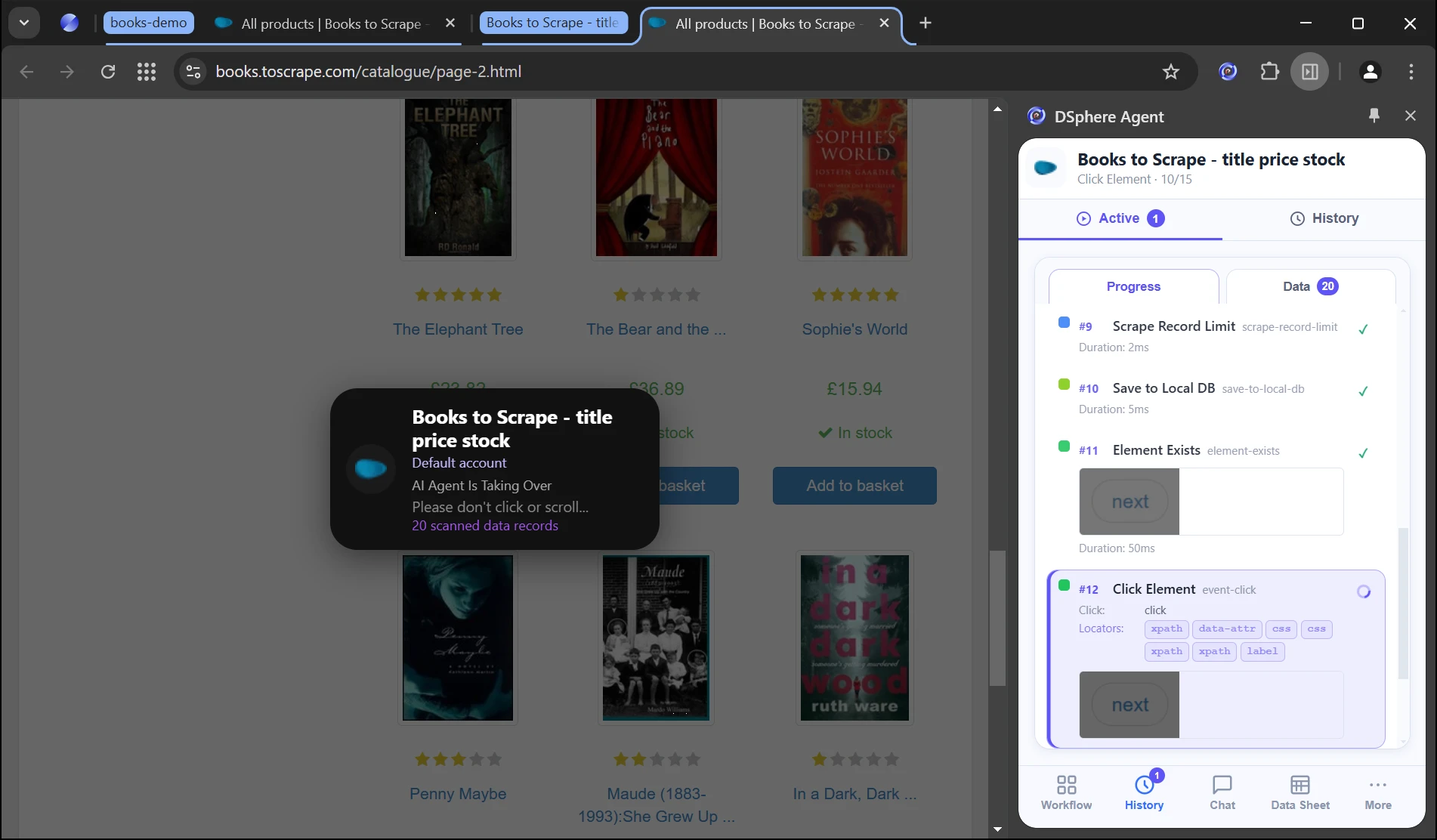
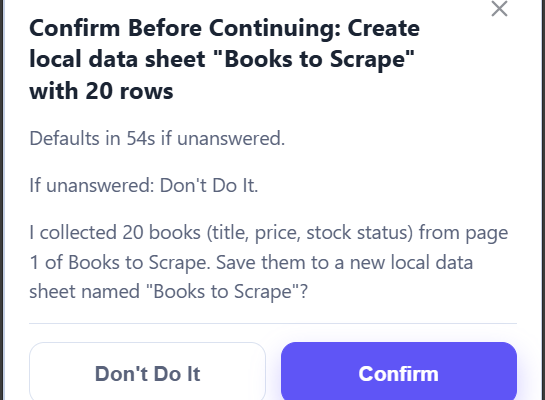
Scrape data, fill forms, download files. Pick one from the + menu.
Give the Skill setup prompt to Cursor, Claude Code, Codex or WorkBuddy to install and configure MCP with the guide, or use the built-in Chat.
 Claude
 Codex
Codex Cursor

Manage sessions, proxies and fingerprints.
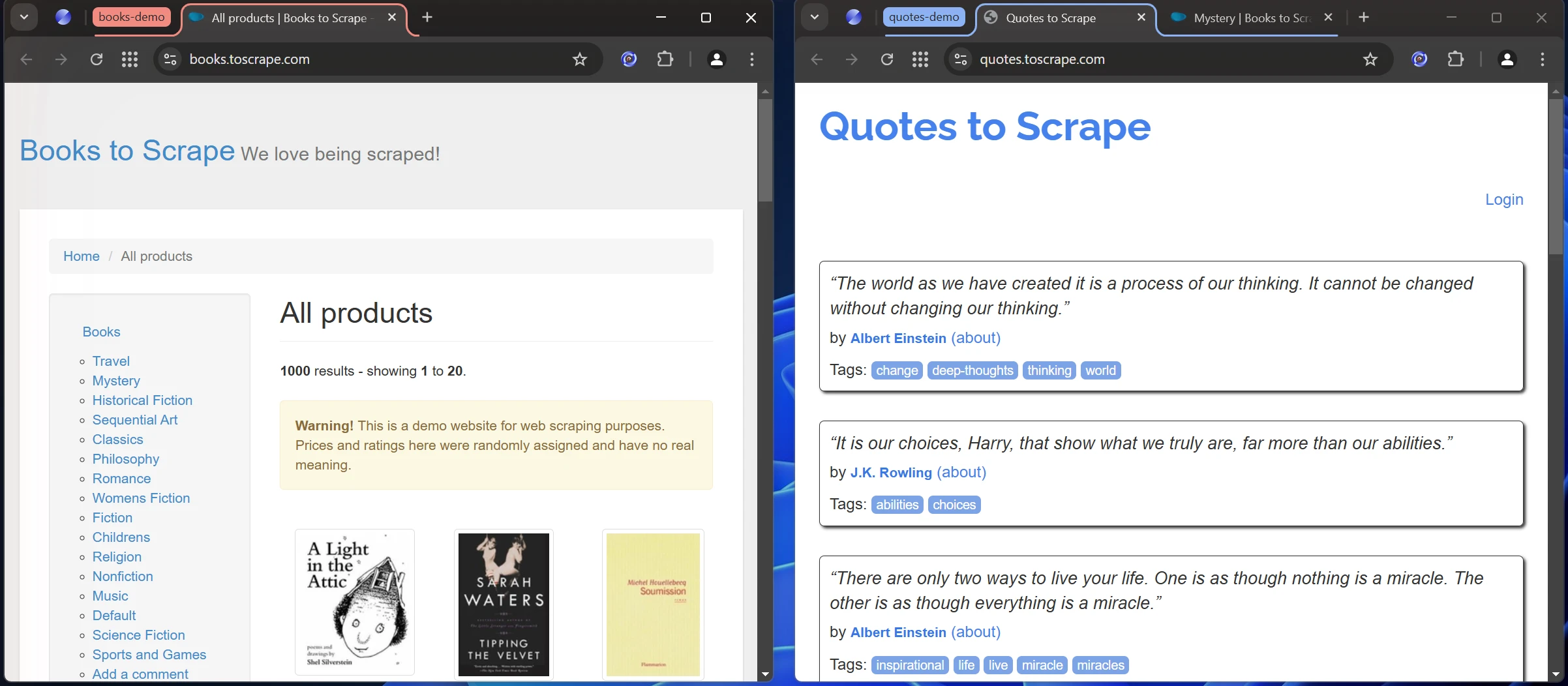
Run in an assigned profile.
Set a proxy per session.
Reuse identity settings.
Separate cookies, storage and state.
Navigate, interact and download.
Follow site rules and rate limits.
Stored separately, used by reference.
Spot issues in status and logs.
Use authorized pages and data only.
Give every account its own browser fingerprint and proxy IP, so each one looks like a separate, real device.
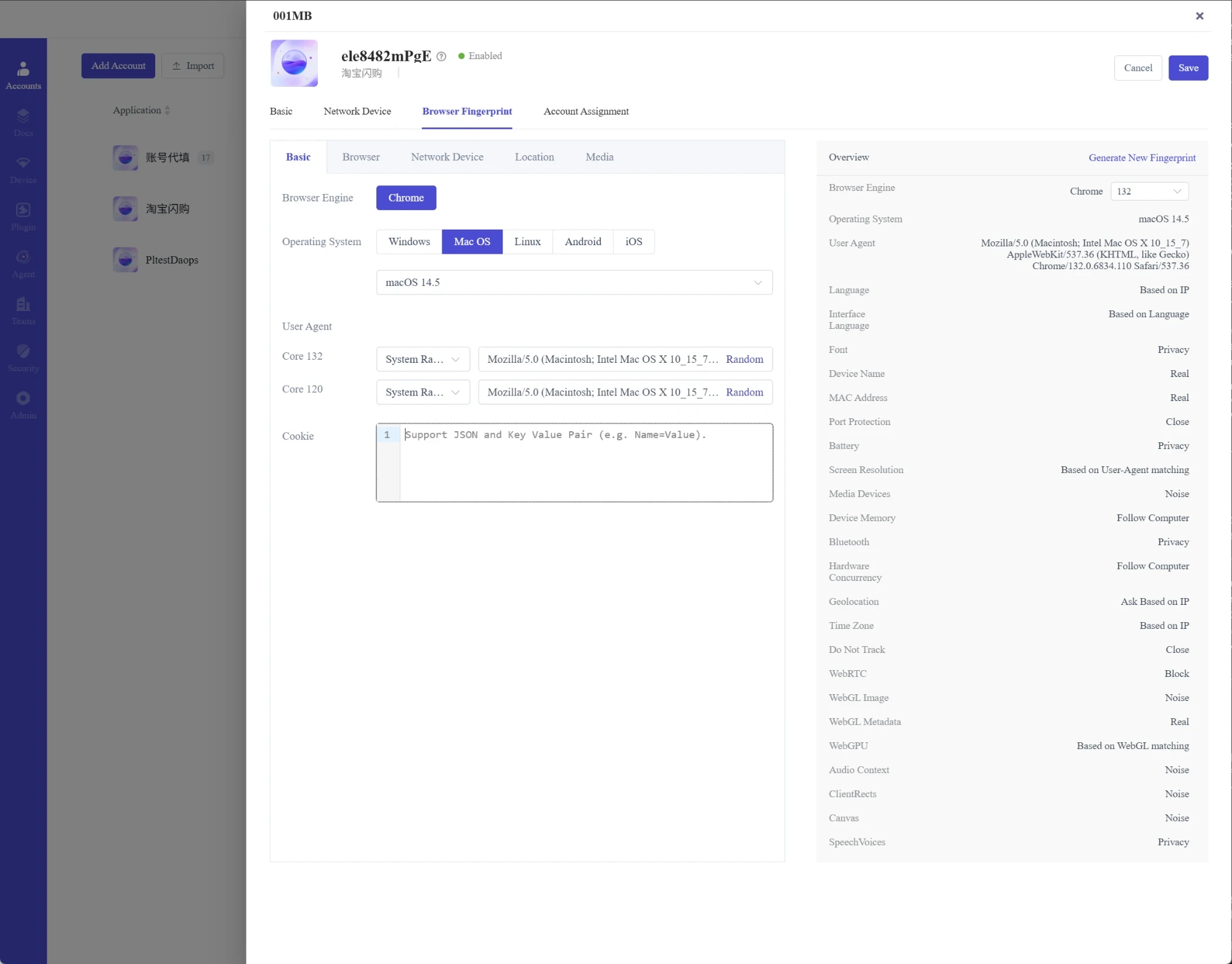
Choose the engine, OS and user agent, then tune 20+ signals such as WebRTC, Canvas, WebGL, fonts and time zone.
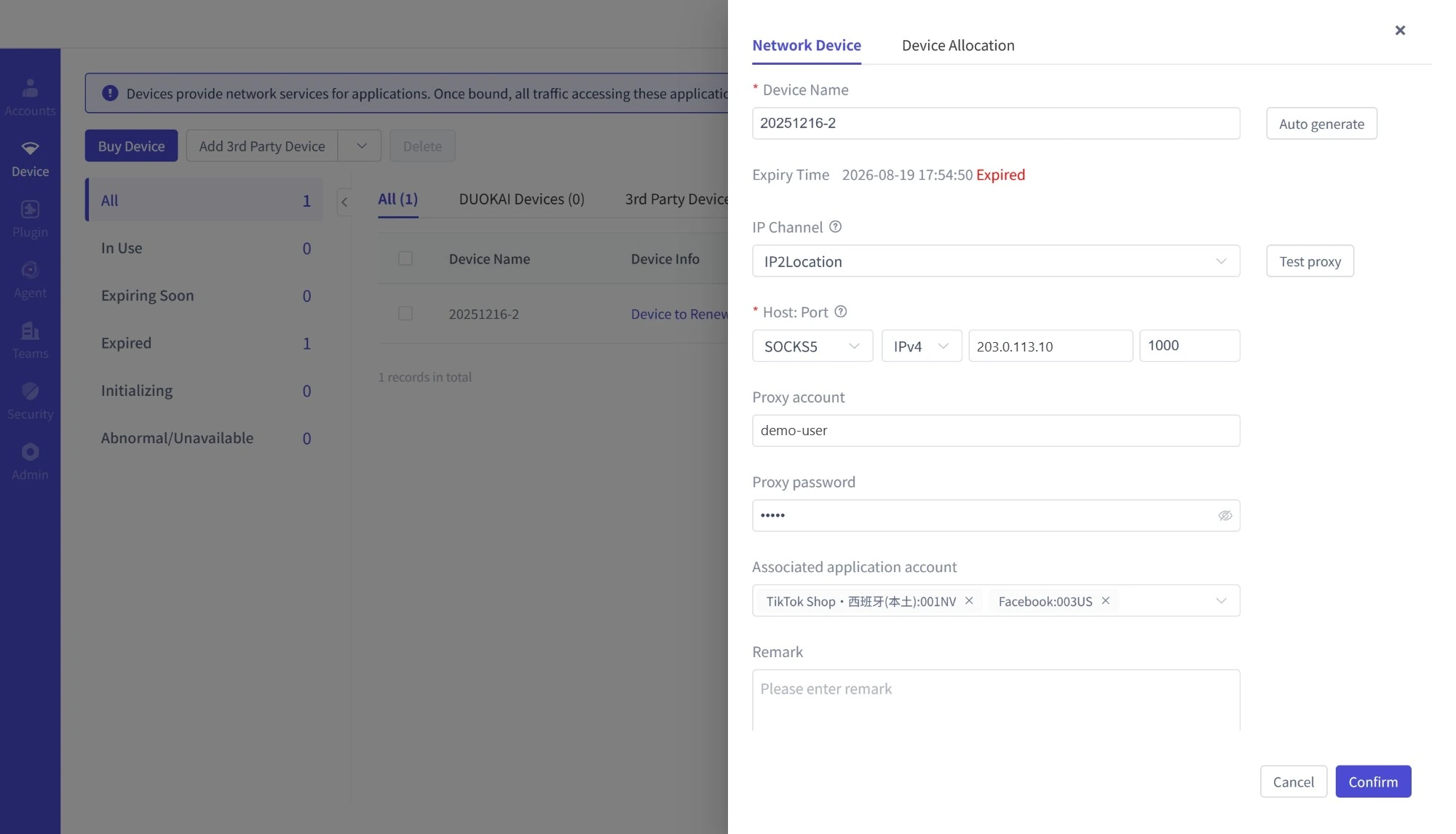
Bind a proxy such as SOCKS5 to each account, pick an IP channel and test it before use.
Use both: Browser Agent for web tasks, RPA for desktop workflows.
Give a goal in your agent or the built-in Chat, and let it plan, act and deliver your first browser task.
Yes. Save a verified task, schedule recurring or date-specific runs, and run tasks in parallel. See pricing for limits.
It reuses signed-in sessions and the 2FA authenticator, so you don’t have to sign in again. Model Repair handles page changes, and sensitive actions ask you to confirm.
Local data sheets, CSV or Excel export, downloaded files and images, or email. Results also return to your agent or Chat.
A live task card shows the plan and page frames, with Pause and Stop. Run history and logs stay available.
Not necessarily. Model location and data scope depend on your connection settings. Follow your team’s data policies.
Claude CodeCodexCursor WorkBuddy
 Built-in Chat
Scan with WeChat for support

Scan to follow us on WeChat

Zhejiang Public Security No. 33011002020912
