
Read And Act On Pages
Observe a page, find targets, then click, type and scroll in checked steps.
page.observepage.findpage.actionpage.markdown
NATIVE AGENT MCP
Let Claude Code, Codex, Cursor or WorkBuddy work in the DsphereAI browser.
Copy this prompt to your AI assistant (Claude Code, Codex, Cursor, WorkBuddy and more). It installs or updates the connector for you.
Help me install or update the dsphere-agent Skill: https://gitee.com/dsphere/dsphere-agent-skills/raw/master/installation-guide.mdAfter setup, restart your AI assistant if it asks, and you are ready → Full installation guide · Source on Gitee
Runs on your computer as a local MCP server. See features for the full product.
 Claude Code
 Codex
Codex Cursor
 WorkBuddy
 TRAE Work
 Qianwen Office
Your agent plans the task. Native Agent passes each step to the DsphereAI browser, where it runs in the sessions you signed in to there.
Plans the task and decides each step.
Claude CodeCodexCursorWorkBuddyTRAE WorkQianwen OfficeA local stdio MCP server, installed and configured through the Skill.
Three stable tools
dsagent_list_instancesdsagent_list_capabilitiesdsagent_invokeRuns each step in the sessions you signed in to within DsphereAI.

Your agent discovers each method live from the DsphereAI browser and calls only what it offers.
Observe a page, find targets, then click, type and scroll in checked steps.
page.observepage.findpage.actionpage.markdownOpen pages in the DsphereAI session or app account you already signed in to. No new logins.
browser.sessions.listpage.account.detectapp.accounts.listRun the scrape wizard and save rows to a local data sheet or a CSV file.
wizard.startexecution.data.exportStart a saved workflow, wait for it or stop it, then read its results.
execution.runexecution.waitexecution.stopFind and download files on a page. Search, read and send mail from your own account.
page.files.downloadmail.searchmail.sendAsk a question or a confirmation in the live task panel, or call you to the page.
page.askpage.notifyEvery step runs in the DsphereAI browser on your computer, where you can watch it and stop it.
Your agent reaches the DsphereAI browser through a local stdio server on your computer.
It reuses the sessions you signed in to within DsphereAI. Sign-ins and CAPTCHAs are handed to you.
Sensitive actions wait for your Confirm in the live task panel.
Chat shows which agent is controlling the browser, with a Stop Agent button.
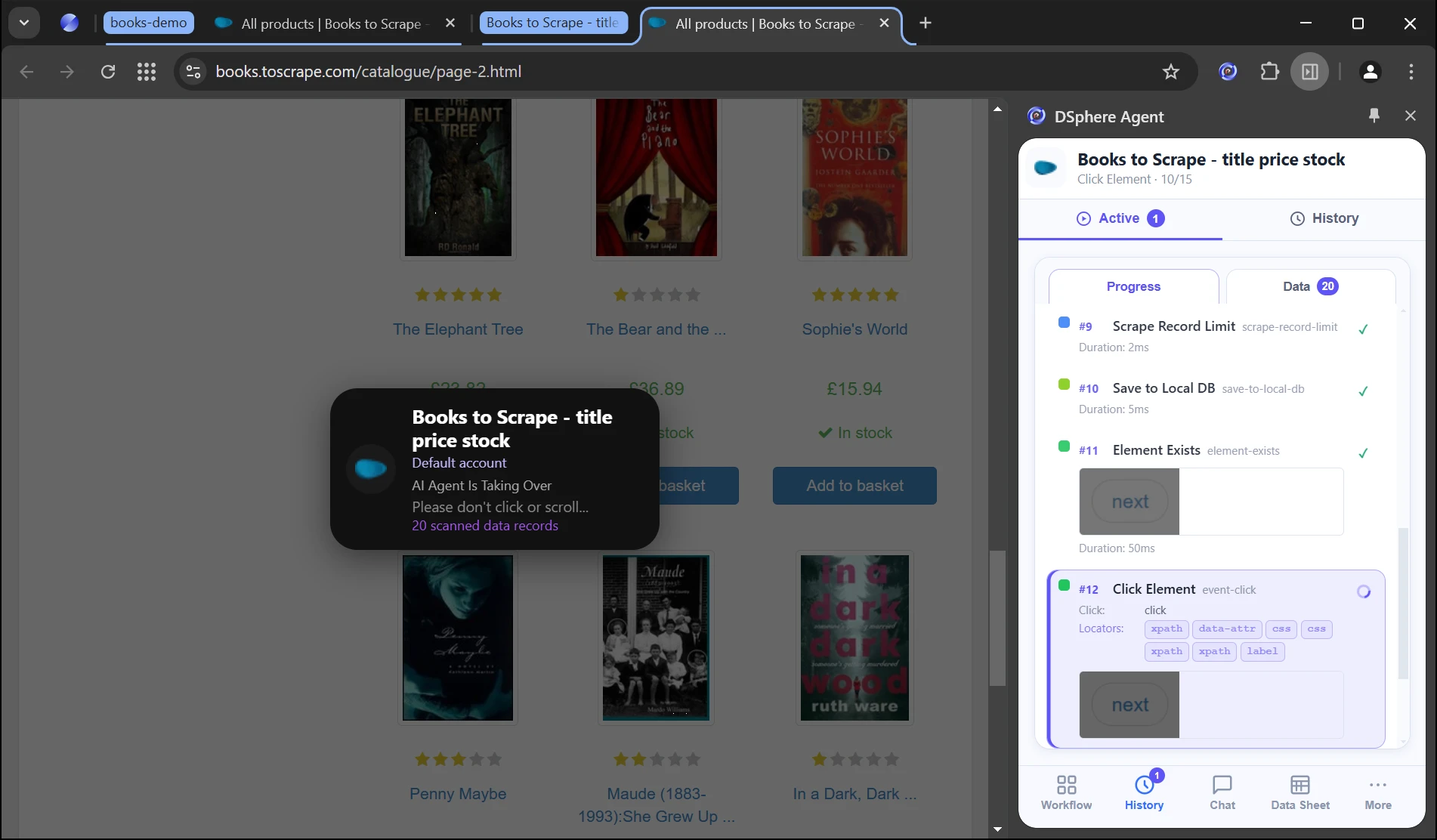
Connect your preferred AI assistant and let it work in the Dsphere browser.
Open Chat in Dsphere and describe your task. No additional connector installation or MCP configuration is needed.

Summarize this page and list the action items.
Already installed? Open Dsphere and start a conversation to run your task.
If your client cannot install Skills, first follow the full installation guide to install the official connector, then connect its local stdio service through your client’s MCP settings. The package includes client setup instructions; the exact steps depend on your client’s capabilities.
Install DsphereAI, connect your agent in a few minutes and run your first browser task.
DSphere Agent Skill is a browser connector package for AI assistants. It installs and configures the local stdio MCP server dsphere-agent; your chosen AI assistant still plans and runs the task.
Claude Code, Codex, Cursor, WorkBuddy, TRAE Work, Qianwen Office, and other agents compatible with local stdio MCP. The client must be able to start a local MCP server; installation and configuration depend on the client’s capabilities.
For assistants with Skill support, copy the setup prompt from Connectors or Connect An AI Agent. The assistant follows the guide to install the Skill and configure MCP, confirming the version and changes before writing files. For other MCP clients, first install the official connector using the full guide, then configure local stdio MCP in your client using the package’s client setup instructions.
No. Your agent reuses the sessions you signed in to within the DsphereAI browser. When a sign-in or CAPTCHA needs you, it asks you to step in.
Chat shows which agent is controlling the browser. Click Stop Agent, or stop the run in the live task panel.
Keep the browser open and copy the Skill setup prompt again. Ask your assistant to follow the guide to check the version, Native Host registration, and MCP configuration, then reconnect safely and verify. Keep the last verified Skill if setup or an update fails.
Claude CodeCodexCursorWorkBuddy Built-in Chat
Scan with WeChat for support

Scan to follow us on WeChat

Zhejiang Public Security No. 33011002020912
